KTC
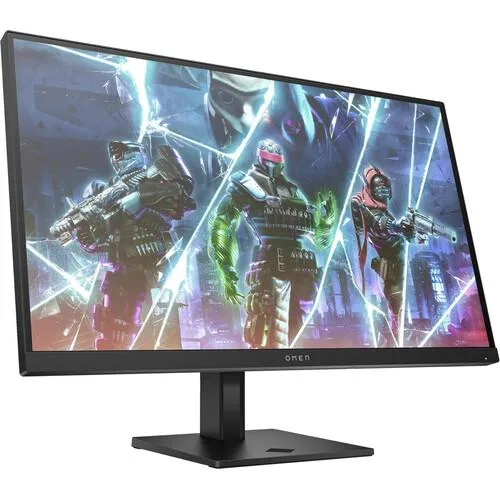
KTC H32T13 32 inch 1440p 100Hz gaming monitor
A 32 inch IPS gaming monitor with 2560 x 1440 resolution, 100 to 120 Hz refresh rate, HDR10 and adaptive sync for smooth visuals
- 1440p resolution on a 32 inch IPS panel delivers crisp detail
- 100 Hz refresh rate with up to 120 Hz for smoother motion
- 103 % sRGB and 1.07 billion colours for vibrant images
- FreeSync and G-Sync support reduces screen tearing and stutter
- Flicker-free and low blue light modes ease eye strain during long sessions
Immersive 32 Inch 1440p Display
The KTC H32T13 is a 32 inch IPS monitor with a 2560 x 1440 resolution and a 16:9 aspect ratio. It delivers a 100Hz refresh rate that can reach up to 120Hz for smoother motion. The panel covers 103% sRGB and outputs 1.07 billion colours at 350cd brightness.
Suited for Work and Casual Gaming
This monitor fits users who want a large, high-resolution screen for office tasks, content viewing, and casual gaming with FreeSync and G-Sync support. Buyers who require a higher native refresh rate for competitive play or specific ergonomic adjustments beyond tilt should look elsewhere.
Connectivity with HDMI, DP and Mini DP
The monitor provides HDMI, DisplayPort and Mini DisplayPort inputs for connecting laptops, PCs and Macs. Eye-care features include flicker-free technology and a low blue light filter to reduce fatigue during long sessions. The ultra-thin bezel design simplifies multi-monitor setups.
Highlights
- 1440p resolution on a 32 inch IPS panel delivers crisp detail
- 100 Hz refresh rate with up to 120 Hz for smoother motion
- 103 % sRGB and 1.07 billion colours for vibrant images
- FreeSync and G-Sync support reduces screen tearing and stutter
- Flicker-free and low blue light modes ease eye strain during long sessions
Specifications
No published specifications for this item yet.
Questions about this item
What refresh rate can the DisplayPort connection actually deliver on this monitor?
The DisplayPort input supports up to 120 Hz, while the HDMI and Mini DisplayPort inputs are limited to 100 Hz.
What mounting pattern and stand adjustments does the 32 inch panel use?
The monitor includes a tilt‑adjustable stand and a 100 mm VESA mount for wall or arm installation.
How do I enable the 120 Hz mode instead of the default 100 Hz?
Connect via DisplayPort, then set 120 Hz in your OS display settings and confirm FreeSync/G‑Sync is active in the on‑screen menu.
Also in this aisle
People compared these
Same shelf, same checkout — eight coins and a 30-minute rate lock.